Compare Zoom And Brightcove
Marketing
Live streaming
Zoom と Brightcove の機能統合について
Mar 30, 2020
新型コロナウイルス(COVID-19)の世界的な感染拡大を背景に、展示会、式典、フォーラム、セミナーなど、イベントの動画配信の需要が高まっている。動画配信には様々な種類があるが、ウェビナーが普及していない日本でも、イベントのオンライン化が急増している。

#ズームとブライトコーブは比較できない
新型コロナウイルス(COVID-19)の世界的な蔓延に伴い、展示会、式典、フォーラム、セミナーなど、イベントの動画配信の需要が高まっている。動画配信にも様々な種類があるが、ウェブセミナーが浸透していない日本でも、ネット上でイベントを開催する動きが急増している。LINEやウェブ会議システム「Zoom」を使ったオンライン飲み会がSNSで話題になるなど、仕事、勉強、プライベートを問わず、オンラインコミュニケーションへの動きそのものがここ数カ月で加速している。
ブライトコーブでは、イベントをライブ放送したいが方法がわからないという問い合わせも増えています。よく寄せられる質問の 1 つに、ブライトコーブと Zoom などの Web 会議システムとの比較についてです。
双方向の動画配信システムを提供する Zoom と、ブロードキャスト(一方向)の動画配信システムを提供する Brightcove は比較できません。どちらも動画配信システムですが、大きく異なります。それぞれに一長一短がありますので、それぞれの特徴を理解し、目的に応じて使い分けることをお勧めします。また、それぞれの長所を活かし、併用することも可能です。この記事では、Zoom と Brightcove の併用について説明します。
## Zoom と Brightcove について
Zoomは、2011年に設立されたZoom Video Communicationsが提供するWeb会議システム。無料プランと有料プランがあり、ビデオ会議システムだけでなく、チャットや画面共有などの機能を備え、参加者が双方向(インタラクティブ)のコミュニケーションを実現できるサービスである。有料プランではウェビナーに特化した機能があり、主催者(主催者)と参加者(視聴者)の権限を細かく設定することが可能です。
ブライトコーブは 2004 年に設立された会社で、放送型の動画配信プラットフォームを提供している。有料プランのみを提供し、インターネット上でライブやオンデマンドの動画配信を行うためのCMSを提供している。ライブ配信機能は、国際的な展示会や音楽・スポーツイベントなどで利用されており、世界中の視聴者が数万人同時に視聴しても負荷に耐えうるサービスを提供している。
## Zoom と Brightcove の機能統合について
この2つのサービスはそれぞれ特徴が異なるが、Zoomを利用している(あるいは利用を検討している)人の中には、会議やウェビナーのライブコンテンツをYouTubeやFacebook、自社のオウンドメディアなどに広く配信したいと考えている人も多いだろう。あるいは、クローズドなサイト(会員制サイトなど)で安定した配信を実現しつつ、どのような視聴傾向があるのかを細かく分析したいという人もいるだろう。
一方、Brightcoveのサービスを利用されている(または利用を検討されている)方は、複数の拠点(例えば東京-大阪、ボストン-シンガポール-東京)のスピーカーを接続してライブ配信ができないか、とお考えではないでしょうか。このような問題を解決するのが、Zoom と Brightcove のコラボレーションです。
## Zoom と Brightcove のコラボレーション方法
Zoom の有料プランには、Web セミナーをライブ ストリーミングするための「ライブ ストリーム配信」という機能があります。カスタム ライブ ストリーム」機能で、Brightcove Live のストリーム URL(Brightcove Live では、これを「ストリーミング エンドポイント(RTMP URL)」と呼びます)とストリーム キー(Brightcove Live では、これを「ストリーム名」と呼びます)を指定することで、エンコーダを用意することなくライブ配信することができます。以下に、この 2 つの接続方法の概要を示します。
### 1.前提条件
- Brightcove Video Cloud アカウントが必要です
- Brightcove Live アカウントが必要です
- Brightcove Social アカウントが必要です(YouTube と Facebook に同時にリンクする場合のみ)
- Zoom で「ライブ ストリーム配信」を使用できる必要があります。
### 2.ズームとブライトコーブリンク画像
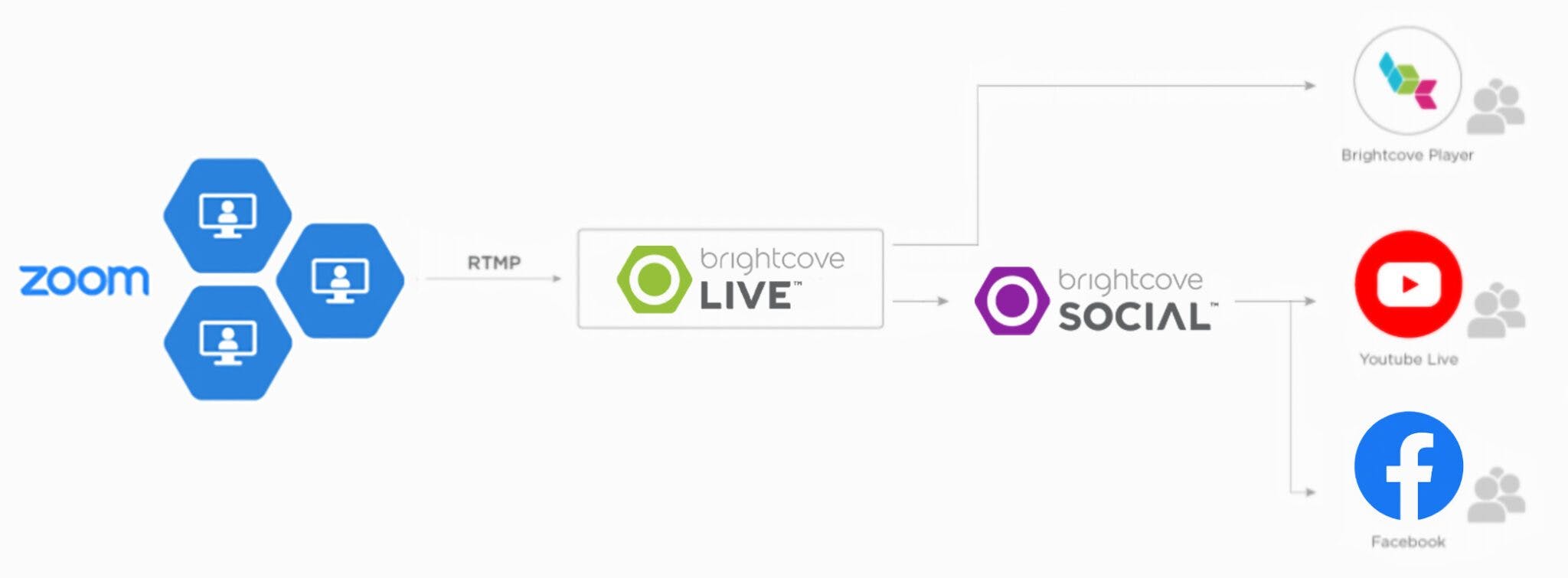
統合のイメージは以下の通りです。Zoom の映像を Brightcove Live サーバに送信し、オウンドメディア(Brightcove Player)とソーシャルメディア(YouTube、Facebook)でライブストリーミングを実現する。YouTube と Facebook への同時配信機能には Brightcove Social を使用。
### 3.ズームとブライトコーブの統合手順
#### 3-1 予備準備
##### ライブイベントの作成
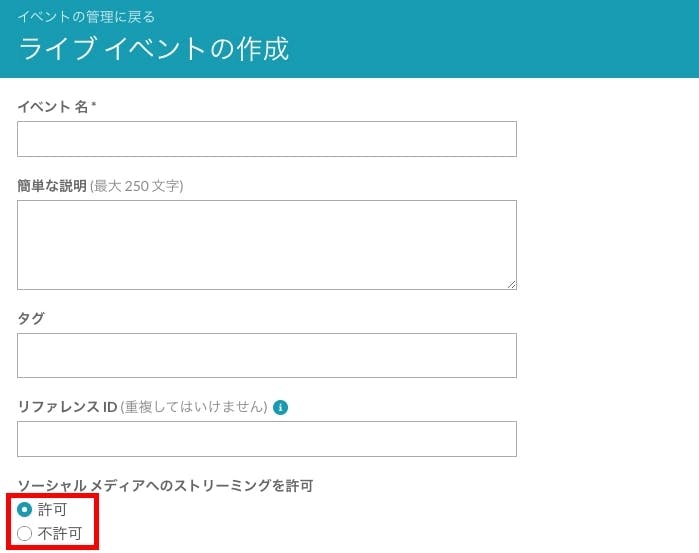
まず、Brightcove Live で「ライブ イベント」を作成します。この方法については、サポート サイト [こちら](https://ja.live.support.brightcove.com/live-module/creating-and-managing-live-events-using-live-module.html) をご覧ください。また、YouTube と Facebook に同時に配信する場合は、「ソーシャルメディアへのストリーミングを許可」が有効になっていることを確認してください。
##### YouTubeとFacebookの統合
YouTube と Facebook に同時に配信したい場合は、Brightcove Social アカウントを YouTube と Facebook のアカウントにリンクする必要があります。この方法については、サポート サイト [こちら](https://ja.studio.support.brightcove.com/social/creating-social-media-publishing-destinations.html "こちら") をご覧ください。
##### カスタムライブストリーム配信サービスの有効化
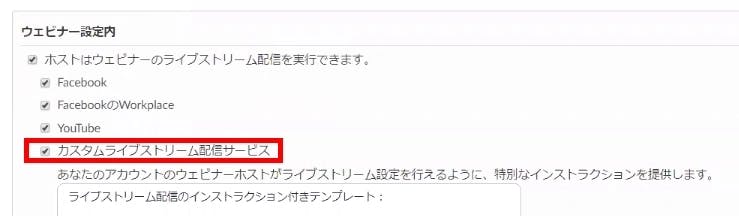
Zoom管理画面の「管理者」⇒「アカウント管理」⇒「ウェビナー設定」⇒「ウェビナー設定」で「カスタムライブストリーム配信サービス」が有効になっていることを確認してください。
#### 3-2 ウェビナーの設定
Please schedule your webinar on Zoom. For instructions on how to do this, please see <a href=”https://support.zoom.us/hc/ja/articles/200917029-%E3%82%A6%E3%82%A7%E3%83%93 Please refer to the Zoom Help Center at <a href=“%E3%83%8A%E3%83%BC%E5%85%A5%E9%96%80” target=“_blank” title=“こちら”>こちら</a>.
その後、「個人」⇒「ウェビナー」⇒「今後のウェビナー」タブの下にある「トピックス」タブをクリックすると、一番下に「ライブストリーム」タブが表示されます。ここで「カスタムライブストリーム」を選択し、青色の「ライブストリーム設定」ボタンをクリックします。
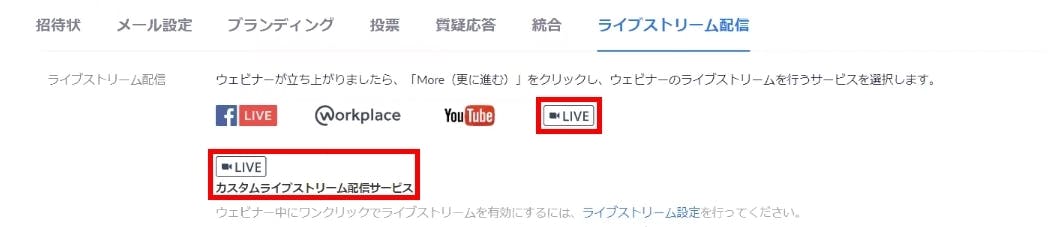
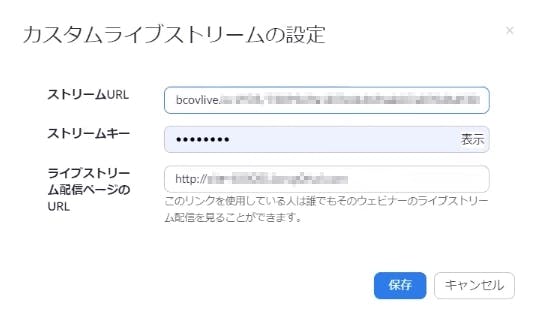
以下の画面が表示されます。事前準備3-1「ライブイベントを作成する」で作成したストリーミングエンドポイント(RTMP URL)を入力してください。また、「ストリームキー」にはストリーム名を入力してください。ライブストリーム配信ページ」には、オウンドメディアで動画を公開するサイトのURLを入力して保存してください。
#### 3-3 イベントの起動
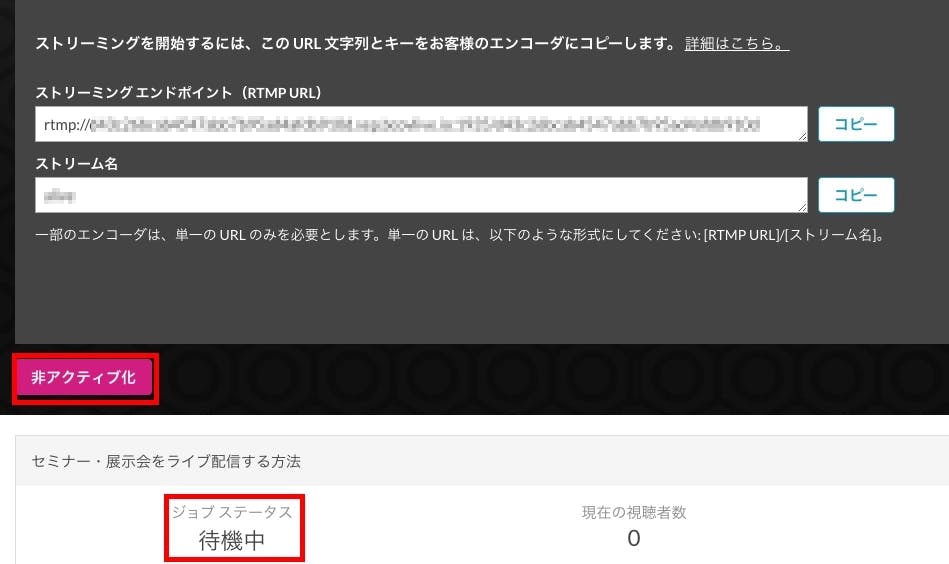
3-1 事前準備 [ライブイベントの作成]で、前回設定したライブイベントが有効になっていることを確認してください。また、[Job Status]が[Waiting]になっていることを確認してください。
#### 3-4 YouTubeとFacebookの統合設定
オウンドメディアと同時に YouTube や Facebook でライブ放送を行いたい場合は、Brightcove Social を使用してそれぞれのライブ イベントを作成する必要があります。
#### 3-5 ライブ放送を開始する
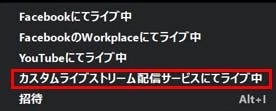
Zoomの「個人」⇒「ウェビナー」⇒「今後のウェビナー」と進み、該当するウェビナーの「開始」をクリックします。これでZoomウェビナーが開始されます。開始後、右下の「詳細」をクリックし、「カスタム・ライブ・ストリーム配信サービスでライブ配信」をクリックします。
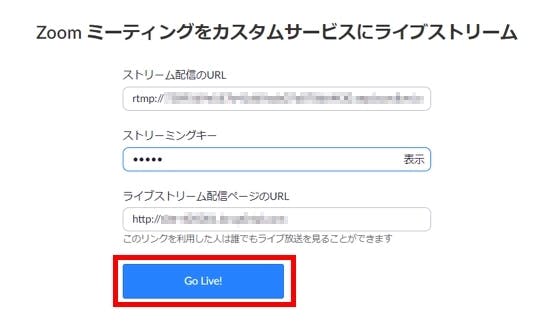
次の画面が表示されるので、すべてが正しいことを確認し、「Go Live!」をクリックすると、ライブ動画が Brightcove Live に送信されます。
Brightcove Live で Zoom からのライブ動画が表示されていれば、ライブ放送は正常に配信されています。また、オウンドメディアに埋め込まれた Brightcove Player でライブ動画が配信されていることも確認してください。
## ブライトコーブの強み
上記の「Zoom と Brightcove の機能統合」で紹介した機能に加えて、Brightcove のさまざまな機能を使用してライブ放送を配信することもできます。以下にその機能を列挙しますので、ぜひご活用ください。
– On-demand distribution. Brightcove Live allows you to [archive videos in Video Cloud](https://ja.live.support.brightcove.com/live-module/creating-and-managing-live-events-using-live-module.html “archive videos in Video Cloud”) after a live broadcast. This allows you to start on-demand distribution after the live broadcast has finished.– Player customization. Video Cloud’s Player feature allows you to [customize](https://ja.studio.support.brightcove.com/players/setting-player-properties.html “customize”) in a variety of ways. You can design the playback button and incorporate your company logo, as well as set the video quality and cast videos using Chromecast.– Live clipping. Brightcove Live has a feature that allows you to [clip live video](https://ja.live.support.brightcove.com/live-module/creating-video-clip-using-live-module.html “Clip Live Video”) while it is being broadcast live (without stopping the live broadcast). By [publishing the clipped video on social media](https://ja.live.support.brightcove.com/live-module/creating-and-managing-live-events-using-live-module.html “publishing on social media”) using Brightcove Social, you can effectively promote your event during the live broadcast.– Live Event Portal Site. Brightcove Gallery is a function that provides a video portal site that is necessary for video distribution. There are various types of templates, including the ‘[Live Event Portal](https://live-pre.brightcovegallery.com/ “Live Event Portal”)’ and ‘[Live Event In-Page](https://inpage.brightcovegallery.com/livepre “Live Event In-Page”)’ templates, which are specialized for live distribution. By using these templates, you can achieve live streaming with an excellent design and efficiency.– SSO integration. The aforementioned Brightcove Gallery can be integrated with [SSO services](https://ja.gallery.support.brightcove.com/settings/configuring-access-control-profiles.html “SSO services”) that support SAML2.0. This makes it easy to achieve live streaming that is limited to viewing by employees only.– MA integration. Brightcove Audience can be integrated with marketing automation functions such as Oracle Eloqua, Marketo, and Hubspot (https://ja.studio.support.brightcove.com/campaign/get-started/getting-started-campaign-module.html “Marketing Automation Integration”). This allows you to display lead forms on the player and track who has viewed which videos and to what extent.On-demand distribution. Brightcove Live allows you to [archive videos in Video Cloud](https://ja.live.support.brightcove.com/live-module/creating-and-managing-live-events-using-live-module.html “archive videos in Video Cloud”) after a live broadcast. This allows you to start on-demand distribution after the live broadcast has finished.
– Player customization. Video Cloud’s Player feature allows you to [customize](https://ja.studio.support.brightcove.com/players/setting-player-properties.html “customize”) in a variety of ways. You can design the playback button and incorporate your company logo, as well as set the video quality and cast videos using Chromecast.
– Live clipping. Brightcove Live has a feature that allows you to [clip live video](https://ja.live.support.brightcove.com/live-module/creating-video-clip-using-live-module.html “Clip Live Video”) while it is being broadcast live (without stopping the live broadcast). By [publishing the clipped video on social media](https://ja.live.support.brightcove.com/live-module/creating-and-managing-live-events-using-live-module.html “publishing on social media”) using Brightcove Social, you can effectively promote your event during the live broadcast.
– Live Event Portal Site. Brightcove Gallery is a function that provides a video portal site that is necessary for video distribution. There are various types of templates, including the ‘[Live Event Portal](https://live-pre.brightcovegallery.com/ “Live Event Portal”)’ and ‘[Live Event In-Page](https://inpage.brightcovegallery.com/livepre “Live Event In-Page”)’ templates, which are specialized for live distribution. By using these templates, you can achieve live streaming with an excellent design and efficiency.
– SSO integration. The aforementioned Brightcove Gallery can be integrated with [SSO services](https://ja.gallery.support.brightcove.com/settings/configuring-access-control-profiles.html “SSO services”) that support SAML2.0. This makes it easy to achieve live streaming that is limited to viewing by employees only.
– MA integration. Brightcove Audience can be integrated with marketing automation functions such as Oracle Eloqua, Marketo, and Hubspot (https://ja.studio.support.brightcove.com/campaign/get-started/getting-started-campaign-module.html “Marketing Automation Integration”). This allows you to display lead forms on the player and track who has viewed which videos and to what extent.
本統合の検証にご協力いただいた株式会社HENGEの水谷浩明氏、板垣伸介氏に感謝する。